
OneLogin OIDC
These instructions configure OneLogin as an OIDC Identity Provider for a Rollbar account.
1. Create the OneLogin OIDC application
- In the OneLogin Admin UI, go to:
Applications → Applications - Click Add App (top right).
- Search for OpenId Connect (OIDC).
- Select the app created by OneLogin, Inc.
- (Optional) Update the Display Name and upload a Rollbar icon for clarity.
- Click Save.
2. Configure Rollbar URLs in OneLogin
After saving, you’ll be on the larger configuration screen.
- Go to the Configuration tab.
- Set the following fields:
Login URL
https://app.rollbar.com/auth/{rollbar_account_name}/oidc
Callback URL
https://app.rollbar.com/auth/callback/oidc
- Click Save.
3. Verify SSO settings in OneLogin
- Go to the SSO tab.
- Confirm these dropdowns:
- Application type:
Web - Token endpoint | Authentication method:
POST
- Click Save.
4. Copy the OneLogin values you need for Rollbar
From the OneLogin app, copy:
- Client ID
- Client Secret
- Well-known configuration
Important:
- For Well-known configuration, copy the hyperlink URL (the link target), not the Issuer URL text you see on the screen.
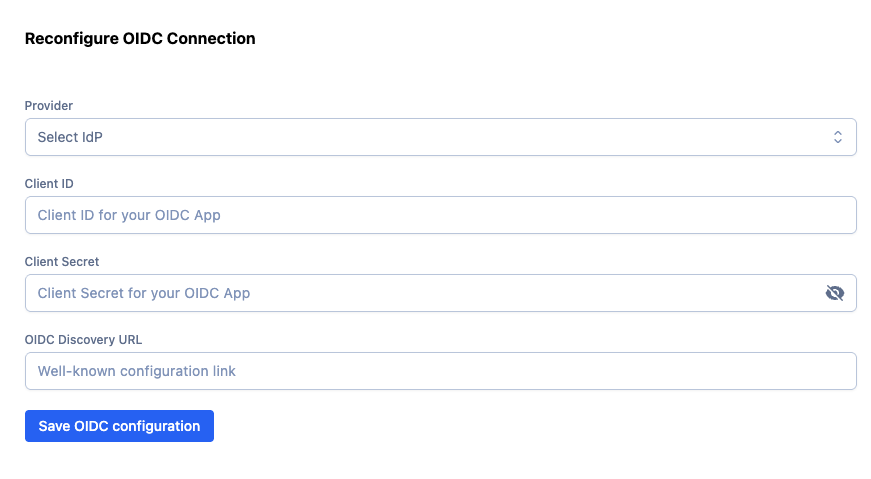
5. Configure Rollbar to use OneLogin OIDC
-
In Rollbar, go to:
Account Settings → Identity Provider -
Scroll to the OIDC connection settings
-
Fill in:
- Provider:
OneLogin - Client ID: (from OneLogin)
- Client Secret: (from OneLogin)
- OIDC Discovery URL: (the OneLogin well-known configuration link)
- Provider:
-
Click Save OIDC configuration.
6. Test login
After saving successfully, you can log in either way:
Option A: OneLogin tile
- Use the Rollbar OIDC Login tile in the OneLogin portal.
Option B: Rollbar login page
- Go to:
https://app.rollbar.com/login/{your-account-name}
Click Log in with OIDC Identity Provider.
7. Access control note (SSO enforced accounts)
If your Rollbar account requires IdP login, that requirement is respected for OIDC the same way it is for SAML.
Practical implication:
- Provision users and group is not available for OIDC logins
- Users still need to be members of the Rollbar account (invited/added) to get past “access needed” screens, even if they authenticate successfully via OneLogin.
Updated 8 months ago
Did this page help you?